

Native App Personator Consumer: Snowflake Reference Guide#
Application Configuration#
Follow the instruction to get the app and details about installation in Native App Installation.
Events and Logs#
Important
We highly recommend enabling Events and Logs to facilitate troubleshooting in case of any issues.
To observe and troubleshoot app behavior, you can enable Logging and Event Tracing for your account and share the app logs with us.
SELECT
   RESOURCE_ATTRIBUTES:"snow.application.name"::STRING as APP_NAME
   ,RECORD
   ,RECORD_ATTRIBUTES
   ,RECORD_TYPE
   ,TIMESTAMP
FROM <YOUR_EVENT_TABLE>
WHERE RECORD_TYPE LIKE 'SPAN_EVENT%'
   AND APP_NAME = '<YOUR_APP_NAME>'
ORDER BY TIMESTAMP DESC
limit 100;
For more information, please check Snowflake Documentations below:
Stored Procedures#
CHECK_SINGLE_CONTACT#
The CHECK_SINGLE_CONTACT procedure validates and standardizes individual name, company, and address components using the Personator Consumer API.
It returns the verification results in JSON format or optional output table, supporting optional fields for flexible and accurate contact validation.
2 ways to check a contact in Native App Personator Consumer for Snowflake:
Fill in the Checking Form on the Native App interface.
Manually run a Snowflake SQL script to call the stored procedure.
Checking Form#
In your Snowflake account, select the app, default name is PERSONATOR_CONSUMER.
Choose Check Single Contact » Try It Now » Checking Form.
Input Example#
Enter the license key and contact information you want to check.
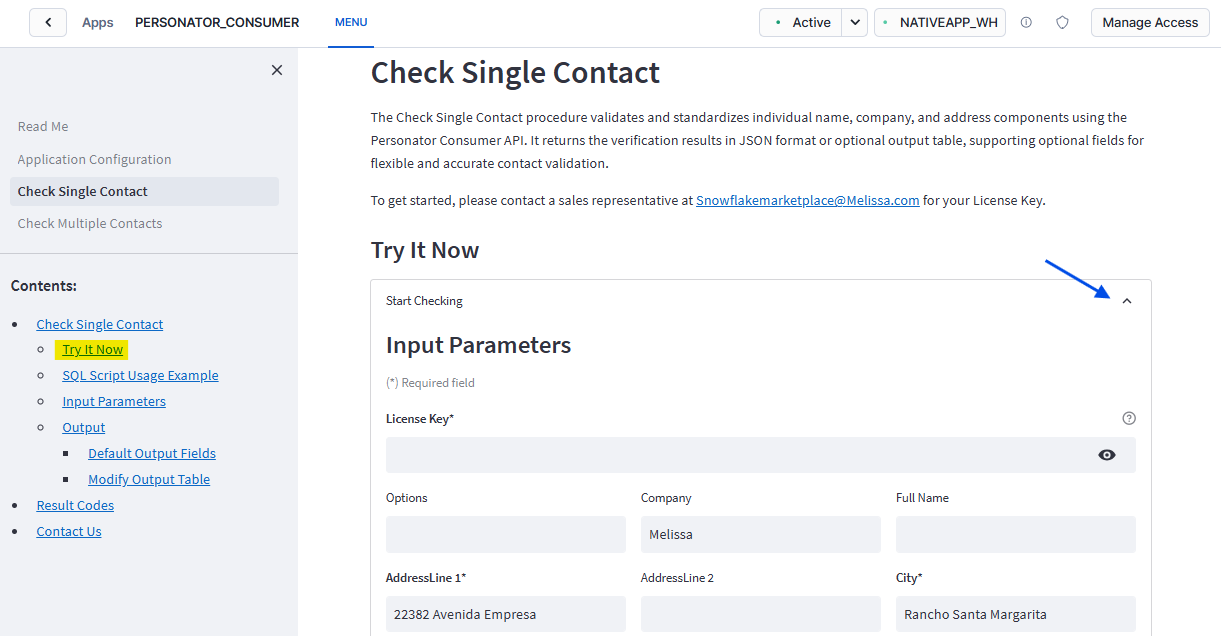
Select Check.
Result will be displayed on the left sidebar.
Output Examples#
Check a single contact
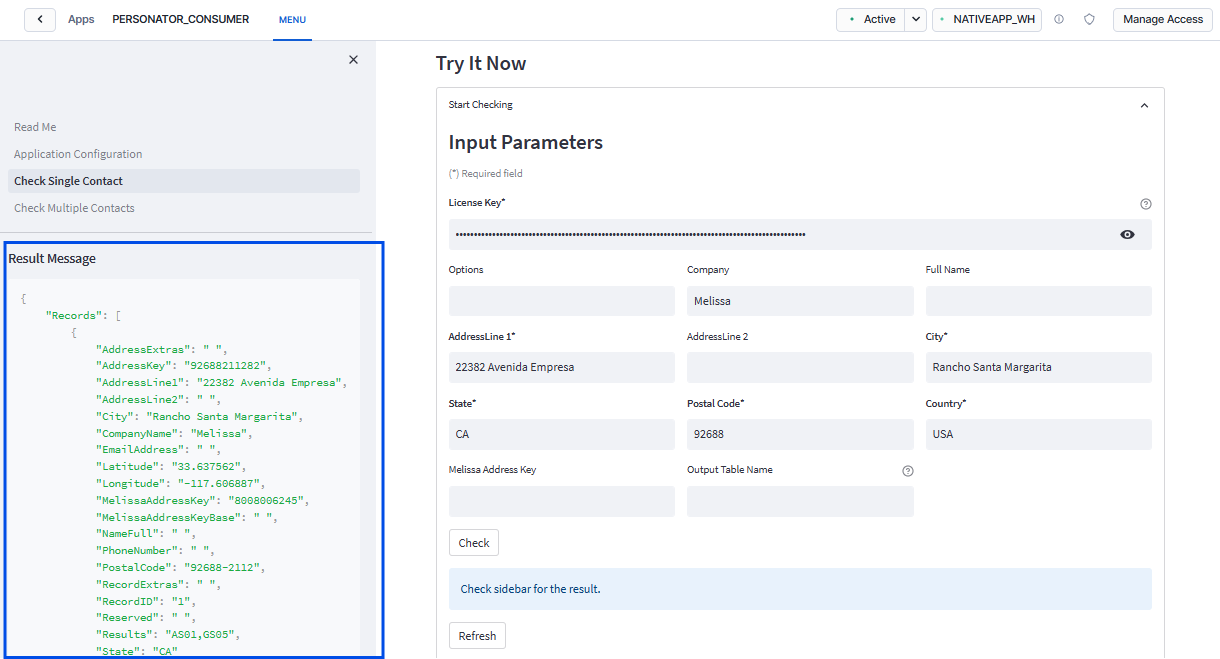
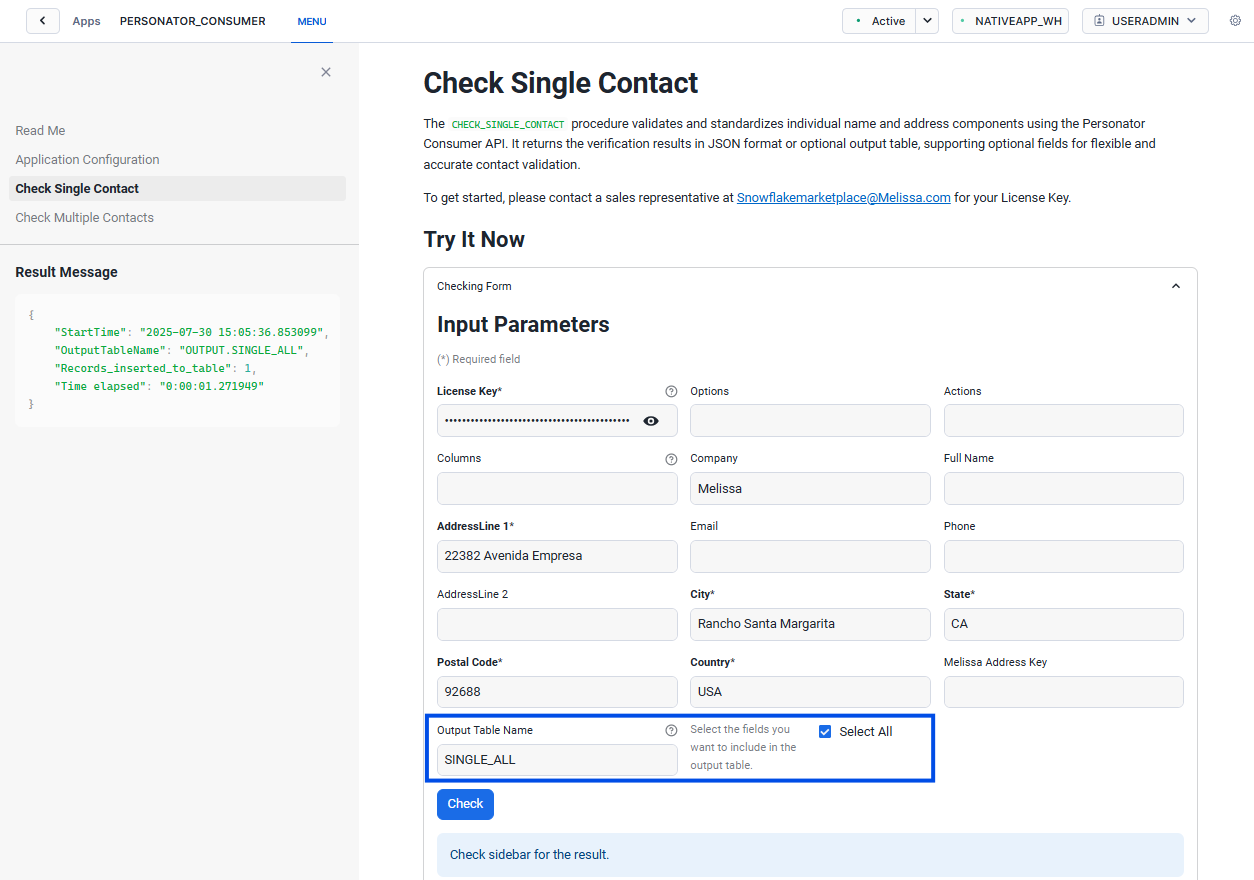
Check a single contact, insert the result to an output table

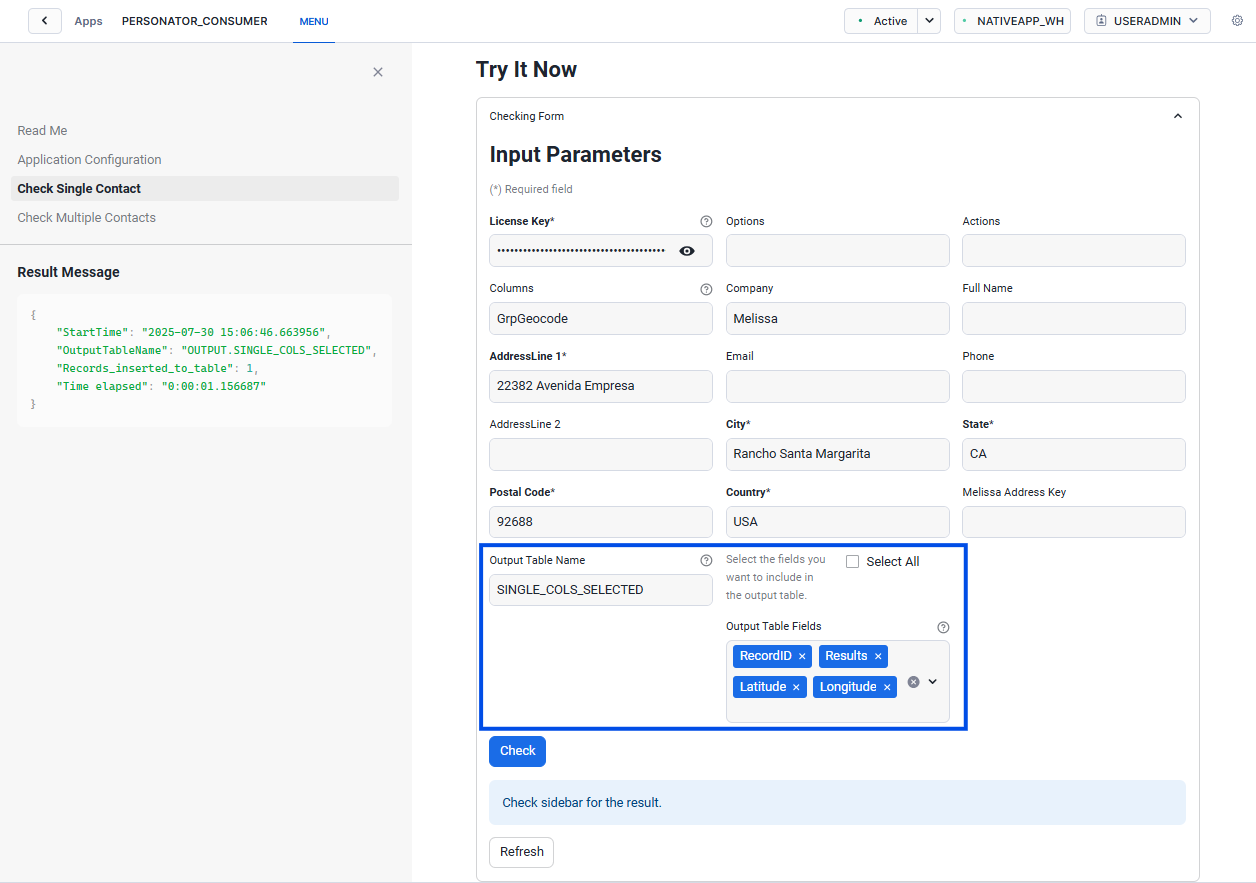
Check a single contact with selected output table fields

Check a single contact with ‘ALL’ output table fields
Check a single contact with additional columns
SQL Script#
Manually call our procedures using a Snowflake SQL script. You can find the installed procedure in <APP_NAME>.CORE schema.
Syntax#
CALL CHECK_SINGLE_CONTACT(
  LICENSE                => '<REPLACE_WITH_YOUR_LICENSE_KEY>'
  [ minimum inputs ... ]
  [ optional parameters ...]
);
Input Parameters#
Minimum Inputs
The service requires at least one of the following input combinations:
Set |
Fields |
|---|---|
Set A |
|
Set B |
|
Set C |
|
Set D |
|
Set E |
|
Set F |
|
Set G |
|
Set H |
|
Set I |
|
Set J |
|
Parameter |
Data Type |
Description |
Example |
|---|---|---|---|
LICENSE |
VARCHAR |
Required. |
REPLACE_WITH_YOUR_LICENSE_KEY |
ACTIONS |
VARCHAR |
Value:
See more information about endpoint actions. |
Check,Move |
COLUMNS |
VARCHAR |
Value:
See more information about endpoint columns. |
Plus4,GrpGeocode |
OPTIONS |
VARCHAR |
Value:
See more information about endpoint options. |
UsePreferredCity:on;Diacritics:off |
OUTPUT_TABLE_NAME |
VARCHAR |
The output table name. Value:
|
|
OUTPUT_TABLE_FIELDS |
VARCHAR |
Only valid when OUTPUT_TABLE_NAME provided. Value:
|
|
ADDRESSLINE1 |
VARCHAR |
The input field for the address line 1. |
22382 Avenida Empresa |
ADDRESSLINE2 |
VARCHAR |
The input field for the address line 2. |
|
AGEAPPROXIMATE |
VARCHAR |
Filter results to return individuals who are within a year of the provided age. |
|
AGEGREATERTHAN |
VARCHAR |
Filter results to return individuals whose age is greater than the provided age. |
|
AGELESSTHAN |
VARCHAR |
Filter results to return individuals whose age is less than the provided age. |
|
BDAY |
VARCHAR |
The birth day of the contact record in |
|
BMONTH |
VARCHAR |
The birth month of the contact record in |
|
BYEAR |
VARCHAR |
The birth year of the contact record in |
|
CITY |
VARCHAR |
The city name. The most common population center data element. |
Rancho Santa Margarita |
COMPANY |
VARCHAR |
The company name. |
Melissa |
COUNTRY |
VARCHAR |
The country. This can only take in variations of US or Canada. All other countries will return AS09 (Foreign Address). Invalid or blank inputs will default to US and Canada. |
USA |
VARCHAR |
The email address. |
johndoe@example.com |
|
FIRSTNAME |
VARCHAR |
The first name. |
John |
FREEFORM |
VARCHAR |
A free form input field that can be used for any additional information. |
|
FULLNAME |
VARCHAR |
US Only. |
John Doe |
IPADDRESS |
VARCHAR |
The IP address for the record. |
|
LASTLINE |
VARCHAR |
The city, state, and ZIP. |
|
LASTNAME |
VARCHAR |
The last name. |
Doe |
MELISSAADDRESSKEY |
VARCHAR |
A proprietary unique key identifier for an address. |
|
MELISSAIDENTITYKEY |
VARCHAR |
A proprietary unique key identifier for an individual. |
|
PHONE |
VARCHAR |
The phone number. |
|
POSTALCODE |
VARCHAR |
The complete postal code for a particular delivery point. |
92688 |
STATE |
VARCHAR |
The US state. The most common geographic data element. |
CA |
Examples#
Check a single contact
CALL CHECK_SINGLE_CONTACT(
    LICENSE                => '<REPLACE_WITH_YOUR_LICENSE_KEY>'
   ,ADDRESSLINE1           => '22382 Avenida Empresa'
   ,CITY                   => 'Rancho Santa Margarita'
   ,STATE                  => 'CA'
   ,POSTALCODE             => '92688'
   ,COUNTRY                => 'US'
);
Result is displayed in JSON format.
{
   "Records":
   [{
     "AddressExtras": " ",
     "AddressKey": "92688211282",
     "AddressLine1": "22382 Avenida Empresa",
     "AddressLine2": " ",
     "City": "Rancho Santa Margarita",
     "CompanyName": " ",
     "EmailAddress": " ",
     "MelissaAddressKey": "8008006245",
     "MelissaAddressKeyBase": " ",
     "NameFull": " ",
     "PhoneNumber": " ",
     "PostalCode": "92688-2112",
     "RecordExtras": " ",
     "RecordID": "1",
     "Reserved": " ",
     "Results": "AC02,AC03,AS01",
     "State": "CA"
   }],
   "TotalRecords": "1",
   "TransmissionReference": " ",
   "TransmissionResults": " ",
   "Version": "5.6.13"
}
Check a single contact, insert the result into an output table
If OUTPUT_TABLE_NAME is provided, a new table will be created if not already existed in the same application database with Default Output Fields.
CALL CHECK_SINGLE_CONTACT(
   LICENSE                => '<REPLACE_WITH_YOUR_LICENSE_KEY>'
  ,ADDRESSLINE1           => '22382 Avenida Empresa'
  ,CITY                   => 'Rancho Santa Margarita'
  ,STATE                  => 'CA'
  ,POSTALCODE             => '92688'
  ,COUNTRY                => 'US'
  ,OUTPUT_TABLE_NAME      => '<OUTPUT_TABLE_NAME>'
);
Check a single contact with selected output fields
You have an option to choose OUTPUT_TABLE_FIELDS to include in your output table.
CALL CHECK_SINGLE_CONTACT(
   LICENSE                => '<REPLACE_WITH_YOUR_LICENSE_KEY>'
  ,ADDRESSLINE1           => '22382 Avenida Empresa'
  ,CITY                   => 'Rancho Santa Margarita'
  ,STATE                  => 'CA'
  ,POSTALCODE             => '92688'
  ,COUNTRY                => 'US'
  ,OUTPUT_TABLE_NAME      => '<OUTPUT_TABLE_NAME>'
  ,OUTPUT_TABLE_FIELDS    => 'RecordID,MelissaAddressKey,Response,Timestamp'
);
Check a single contact with ‘ALL’ output table fields
CALL CHECK_SINGLE_CONTACT(
   LICENSE                => '<REPLACE_WITH_LICENSE_KEY>'
  ,ADDRESSLINE1           => '22382 Avenida Empresa'
  ,CITY                   => 'Rancho Santa Margarita'
  ,STATE                  => 'CA'
  ,POSTALCODE             => '92688'
  ,COUNTRY                => 'US'
  ,OUTPUT_TABLE_NAME      => '<OUTPUT_TABLE_NAME>'
  ,OUTPUT_TABLE_FIELDS    => 'All'
);
CHECK_MULTIPLE_CONTACTS#
The CHECK_MULTIPLE_CONTACTS procedure processes records in batches,
validating and standardizing key components using the Personator Consumer API.
It can handle tables of any size, returning the results in a specified output table and supports optional fields for flexible, accurate contacts validation.
Requirements#
To use this feature, you need to prepare an input table in Snowflake beforehand referencing our default input fields below. Make sure to have at least one of the minimum input combinations.
Minimum Input Combinations
Set |
Fields |
|---|---|
Set A |
|
Set B |
|
Set C |
|
Set D |
|
Set E |
|
Set F |
|
Set G |
|
Set H |
|
Set I |
|
Set J |
|
Default Input Fields#
Column Name |
Data Type |
Description |
|---|---|---|
RECORDID |
NUMBER |
Required. |
ADDRESSLINE1 |
VARCHAR |
The input field for the address line 1. |
ADDRESSLINE2 |
VARCHAR |
The input field for the address line 2. |
AGEAPPROXIMATE |
VARCHAR |
Filter results to return individuals who are within a year of the provided age. |
AGEGREATERTHAN |
VARCHAR |
Filter results to return individuals whose age is greater than the provided age. |
AGELESSTHAN |
VARCHAR |
Filter results to return individuals whose age is less than the provided age. |
BIRTHDAY |
VARCHAR |
The birth day of the contact record in |
BIRTHMONTH |
VARCHAR |
The birth month of the contact record in |
BIRTHYEAR |
VARCHAR |
The birth year of the contact record in |
CITY |
VARCHAR |
The city name. |
COMPANYNAME |
VARCHAR |
The organization name associated with the address record. |
COUNTRY |
VARCHAR |
The country name, abbreviation, or code.
|
EMAILADDRESS |
VARCHAR |
The email address. |
FIRSTNAME |
VARCHAR |
The first name. |
FREEFORM |
VARCHAR |
A free form input field that can be used for any additional information. |
FULLNAME |
VARCHAR |
The full name. |
IPADDRESS |
VARCHAR |
The IP address for the record. |
LASTLINE |
VARCHAR |
The city, state, and ZIP. |
LASTNAME |
VARCHAR |
The last name. |
MELISSAADDRESSKEY |
VARCHAR |
A proprietary unique key identifier for an address. |
MELISSAIDENTITYKEY |
VARCHAR |
A proprietary unique key identifier for an individual. |
PHONENUMBER |
VARCHAR |
The phone number. |
POSTALCODE |
VARCHAR |
The postal code. |
STATE |
VARCHAR |
The US state. |
SQL Script#
You can find the installed procedure in <APP_NAME>.CORE schema.
Syntax#
CALL CHECK_MULTIPLE_CONTACTS(
   LICENSE                => '<REPLACE_WITH_YOUR_LICENSE_KEY>'
  ,INPUT_TABLE_NAME       => '<YOUR_INPUT_TABLE_NAME>'
  ,OUTPUT_TABLE_NAME      => '<YOUR_OUTPUT_TABLE_NAME>'
  [ optional parameters ...]
);
Input Parameters#
Input parameters when calling stored procedure CHECK_MULTIPLE_CONTACTS.
Parameter |
Data Type |
Description |
Example |
|---|---|---|---|
LICENSE |
VARCHAR |
Required. |
REPLACE_WITH_YOUR_LICENSE_KEY |
INPUT_TABLE_NAME |
VARCHAR |
Required. |
IN_DB.IN_SCHEMA.INPUT_TABLE_NAME |
OUTPUT_TABLE_NAME |
VARCHAR |
Required. Value:
|
OUTPUT_TABLE_NAME |
OUTPUT_TABLE_FIELDS |
VARCHAR |
Value:
|
|
ACTIONS |
VARCHAR |
Value:
See more information about endpoint actions. |
Check,Move |
COLUMNS |
VARCHAR |
Value:
See more information about endpoint columns. |
Plus4,GrpGeocode |
OPTIONS |
VARCHAR |
Value:
See more information about endpoint options. |
UsePreferredCity:on;Diacritics:off |
DUPLICATE_CHECK |
BOOLEAN |
Whether to check duplicate records in the input table. Value:
|
TRUE |
Examples#
Output tables will be created in OUTPUT schema of the application database if not already existed.
The step-by-step example below shows how to use our stored procedure CHECK_MULTIPLE_CONTACTS.
Replace with your values.
Step 0 - Prepare an input table
Assume that the input table has the signature below:
 CREATE TABLE IF NOT EXISTS <INPUT_DATABASE>.<INPUT_SCHEMA>.<INPUT_TABLE> (
   RECID NUMBER(38,0),
   MAK VARCHAR(16777216) DEFAULT '',
   COMPANYNAME VARCHAR(16777216) DEFAULT '',
   FULLNAME VARCHAR(16777216) DEFAULT '',
   EMAIL VARCHAR(16777216) DEFAULT '',
   PHONE VARCHAR(16777216) DEFAULT '',
   ADDRESS1 VARCHAR(16777216) DEFAULT '',
   ADDRESS2 VARCHAR(16777216) DEFAULT '',
   CITY VARCHAR(16777216) DEFAULT '',
   STATE VARCHAR(16777216) DEFAULT '',
   POSTAL VARCHAR(16777216) DEFAULT '',
   COUNTRY VARCHAR(16777216) DEFAULT '',
   PRIMARY KEY (RECID)
 );
This input table has different column names from the Default Input Fields. Mapping column names in Step 2 is necessary for the program to get the correct parameters.
Attention
Make sure your input table contains unique RecordID before running the next script. See more about Batch Processing Best Practices.
Step 1 - Grant Required Privileges
Ensure the application has the necessary access to the input table. Replace placeholders with your actual values.
/**********************************************************************
Personator Consumer - Multiple Contacts Usage Example
**********************************************************************/
/* Grant usage on input table to the application, replace with your values.*/
GRANT USAGE ON DATABASE <INPUT_DATABASE> TO APPLICATION PERSONATOR_CONSUMER;
GRANT USAGE ON SCHEMA <INPUT_DATABASE>.<INPUT_SCHEMA> TO APPLICATION PERSONATOR_CONSUMER;
GRANT SELECT ON TABLE <INPUT_DATABASE>.<INPUT_SCHEMA>.<INPUT_TABLE> TO APPLICATION PERSONATOR_CONSUMER;
Step 2 - Map Input Columns with the Default Input Fields
Set the required parameters and map your input columns to our Default Input Fields.
You can skip the mapping step if your input table matches our Default Input Fields exactly.
USE PERSONATOR_CONSUMER.CORE;

/* Map your input columns with our default input fields, replace with your actual column names if they differ from our default values */
CREATE OR REPLACE TEMPORARY VIEW INPUT_RECORDS AS
SELECT DISTINCT
  RECID                               AS RECORDID,
  COALESCE(MAK, '')                   AS MELISSAADDRESSKEY,
  COALESCE(COMPANYNAME, '')           AS COMPANYNAME,
  COALESCE(FULLNAME, '')              AS FULLNAME,
  COALESCE(EMAIL, '')                 AS EMAILADDRESS,
  COALESCE(PHONE, '')                 AS PHONENUMBER,
  COALESCE(ADDRESS1, '')              AS ADDRESSLINE1,
  COALESCE(ADDRESS2, '')              AS ADDRESSLINE2,
  COALESCE(CITY, '')                  AS CITY,
  COALESCE(STATE, '')                 AS STATE,
  COALESCE(POSTAL, '')                AS POSTALCODE,
  COALESCE(COUNTRY, '')               AS COUNTRY
FROM <INPUT_DATABASE>.<INPUT_SCHEMA>.<INPUT_TABLE_NAME>;
Step 3 - Call stored procedure ``CHECK_MULTIPLE_CONTACTS`` to verify your data
 CALL CHECK_MULTIPLE_CONTACTS(
    LICENSE                => '<REPLACE_WITH_YOUR_LICENSE_KEY>'
   ,INPUT_TABLE_NAME       => TABLE(INPUT_RECORDS)
   ,OUTPUT_TABLE_NAME      => '<OUTPUT_TABLE_NAME>'
 );
Full SQL Script
/**********************************************************************
Personator Consumer - Multiple Contacts Usage Example
**********************************************************************/
/* Grant usage on input table to the application, replace with your values.*/
GRANT USAGE ON DATABASE <INPUT_DATABASE> TO APPLICATION PERSONATOR_CONSUMER;
GRANT USAGE ON SCHEMA <INPUT_DATABASE>.<INPUT_SCHEMA> TO APPLICATION PERSONATOR_CONSUMER;
GRANT SELECT ON TABLE <INPUT_DATABASE>.<INPUT_SCHEMA>.<INPUT_TABLE> TO APPLICATION PERSONATOR_CONSUMER;

USE PERSONATOR_CONSUMER.CORE;

/* Map your input columns with our default input fields, replace with your actual column names if they differ from our default values */
CREATE OR REPLACE TEMPORARY VIEW INPUT_RECORDS AS
SELECT DISTINCT
  RECID                               AS RECORDID,
  COALESCE(MELISSAADDRESSKEY, '')     AS MELISSAADDRESSKEY,
  COALESCE(COMPANYNAME, '')           AS COMPANYNAME,
  COALESCE(FULLNAME, '')              AS FULLNAME,
  COALESCE(EMAIL, '')                 AS EMAILADDRESS,
  COALESCE(PHONE, '')                 AS PHONENUMBER,
  COALESCE(ADDRESS1, '')              AS ADDRESSLINE1,
  COALESCE(ADDRESS2, '')              AS ADDRESSLINE2,
  COALESCE(CITY, '')                  AS CITY,
  COALESCE(STATE, '')                 AS STATE,
  COALESCE(POSTAL, '')                AS POSTALCODE,
  COALESCE(COUNTRY, '')               AS COUNTRY
FROM <INPUT_DATABASE>.<INPUT_SCHEMA>.<INPUT_TABLE_NAME>;

/* Call the stored procedure */
CALL CHECK_MULTIPLE_CONTACTS(
   LICENSE                => '<REPLACE_WITH_YOUR_LICENSE_KEY>'
  ,INPUT_TABLE_NAME       => TABLE(INPUT_RECORDS)
  ,OUTPUT_TABLE_NAME      => '<OUTPUT_TABLE_NAME>'
);
Below are some common examples.
Check multiple contacts with the default output fields
CALL CHECK_MULTIPLE_CONTACTS(
   LICENSE                => '<REPLACE_WITH_YOUR_LICENSE_KEY>'
  ,INPUT_TABLE_NAME       => '<INPUT_TABLE_NAME>'
  ,OUTPUT_TABLE_NAME      => '<OUTPUT_TABLE_NAME>'
);
Check multiple contacts with selected output fields
CALL CHECK_MULTIPLE_CONTACTS(
   LICENSE                => '<REPLACE_WITH_YOUR_LICENSE_KEY>'
  ,INPUT_TABLE_NAME       => '<INPUT_TABLE_NAME>'
  ,OUTPUT_TABLE_NAME      => '<OUTPUT_TABLE_NAME>'
  ,OUTPUT_TABLE_FIELDS    => '<Field_1,Field_2>'
);
Check multiple contacts with ‘ALL’ output table fields
CALL CHECK_MULTIPLE_CONTACTS(
   LICENSE                => '<REPLACE_WITH_YOUR_LICENSE_KEY>'
  ,INPUT_TABLE_NAME       => '<INPUT_TABLE_NAME>'
  ,OUTPUT_TABLE_NAME      => '<OUTPUT_TABLE_NAME>'
  ,OUTPUT_TABLE_FIELDS    => 'All'
);
Check multiple contacts with additional columns
CALL CHECK_MULTIPLE_CONTACTS(
   LICENSE                => '<REPLACE_WITH_YOUR_LICENSE_KEY>'
  ,INPUT_TABLE_NAME       => '<INPUT_TABLE_NAME>'
  ,OUTPUT_TABLE_NAME      => '<OUTPUT_TABLE_NAME>'
  ,ACTIONS                => '<Action_1,Action_2>'
  ,COLUMNS                => '<ColumnName,GrpColumnName>'
);
DROP_OUTPUT_TABLE#
Use stored procedure DROP_OUTPUT_TABLE if you wish to remove the table from the application database.
Only tables created by the procedure call can be dropped.
CALL DROP_OUTPUT_TABLE('<APP_NAME>.OUTPUT.<OUTPUT_TABLE_NAME>');
Output Tables#
A new output table will be created if not already existed in the same application database.
|--APP_NAME
   |--CONFIG
   |--CORE
   |--OUTPUT
       |--Tables
           |--<OUTPUT_TABLE_NAME>
 ...
The responses from our API, along with the selected output fields, will be parsed into their respective columns.
Output tables created during the process are owned by the Application. Therefore, their usage is limited to the operations listed below.
Select, Delete, Truncate.
SELECT *
FROM <OUTPUT_TABLE_NAME>;
DELETE FROM <OUTPUT_TABLE_NAME>
WHERE RECORDID IS NULL;
TRUNCATE TABLE <OUTPUT_TABLE_NAME>;
Insert.
By calling the same stored procedure without changing the input structure, new records will be inserted to the same table.
Drop.
By calling DROP_OUTPUT_TABLE procedure.
Default Output Fields#
If OUTPUT_TABLE_FIELDS is not specified, output table will have a default schema as below.
Additional fields from COLUMNS input parameter will be added to the output table if specified.
Column Name |
Data Type |
|---|---|
RECORDID |
NUMBER |
MELISSAADDRESSKEY |
VARCHAR |
MELISSAADDRESSKEYBASE |
VARCHAR |
INCOMPANY |
VARCHAR |
INFULLNAME |
VARCHAR |
INEMAIL |
VARCHAR |
INPHONE |
VARCHAR |
INADDRESSLINE1 |
VARCHAR |
INADDRESSLINE2 |
VARCHAR |
INCITY |
VARCHAR |
INSTATE |
VARCHAR |
INPOSTALCODE |
VARCHAR |
INCOUNTRY |
VARCHAR |
INMELISSAADDRESSKEY |
VARCHAR |
RESULTS |
VARCHAR |
COMPANYNAME |
VARCHAR |
NAMEFULL |
VARCHAR |
ADDRESSLINE1 |
VARCHAR |
ADDRESSLINE2 |
VARCHAR |
CITY |
VARCHAR |
STATE |
VARCHAR |
POSTALCODE |
VARCHAR |
ADDRESSKEY |
VARCHAR |
RESERVED |
VARCHAR |
TIMESTAMP |
TIMESTAMP_NTZ |
Versions and Updates#
Check for current version#
SHOW APPLICATIONS;
Updates#
When Melissa releases a new version of the Native App, your installed application will get updated automatically.
However, you will need to reinstall the app’s functionality after the upgrade is complete, as described in Application Configuration.
Result Codes#
For the full list of result codes returned by Native App Personator Consumer: Snowflake, please visit Native App Personator Consumer - Result Codes.
Interpreting Results#
The Personator API and other Melissa APIs will have a Results Output. Several different Result Codes may be returned by the service in order to give you detailed information about the status of the record submitted.
It is important to understand these result codes in order for you to make a determination of good vs bad data and how you would want to use it.
The following shows you the indicators for the different results:
Code |
Description |
Quality Indicator |
|---|---|---|
AS01 |
Address verified at the unit level |
Good Data |
AS02 |
Address verified at the building level |
Good Data |
AS03 |
Valid non-USPS address |
Good Data |
PS01 |
Valid phone number |
Good Data |
ES01 |
Valid email address |
Good Data |
NS01 |
Name successfully parsed |
Good Data |
AE** |
Results that begin with AE are an indication of address errors |
Bad Data |
PE** |
Results that begin with PE are an indication of phone errors |
Bad Data |
EE** |
Results that begin with EE are an indication of email errors |
Bad Data |
NE** |
Results that begin with NE are an indication of name errors |
Bad Data |
GS05 |
Rooftop level accuracy for Lat/Long |
High Accuracy GeoCoding |
GS06 |
Interpolated rooftop level accuracy for Lat/Long |
High Accuracy GeoCoding |
GS01 |
Street level accuracy for Lat/Long |
Medium Accuracy GeoCoding |