

Result Codes - Clean Suite for CRM: Salesforce#
Result Codes#
Melissa services return result codes with each processed record. Use these codes to decide whether your process can accept, review, or reject a record.
Read Result Codes#
A response can contain more than one comma-separated code. Each code describes a different part of the result.
For example, an address response can contain an address status code and a geocode status code. Review the complete returned code string before you change a record workflow.
Result Code Anatomy#
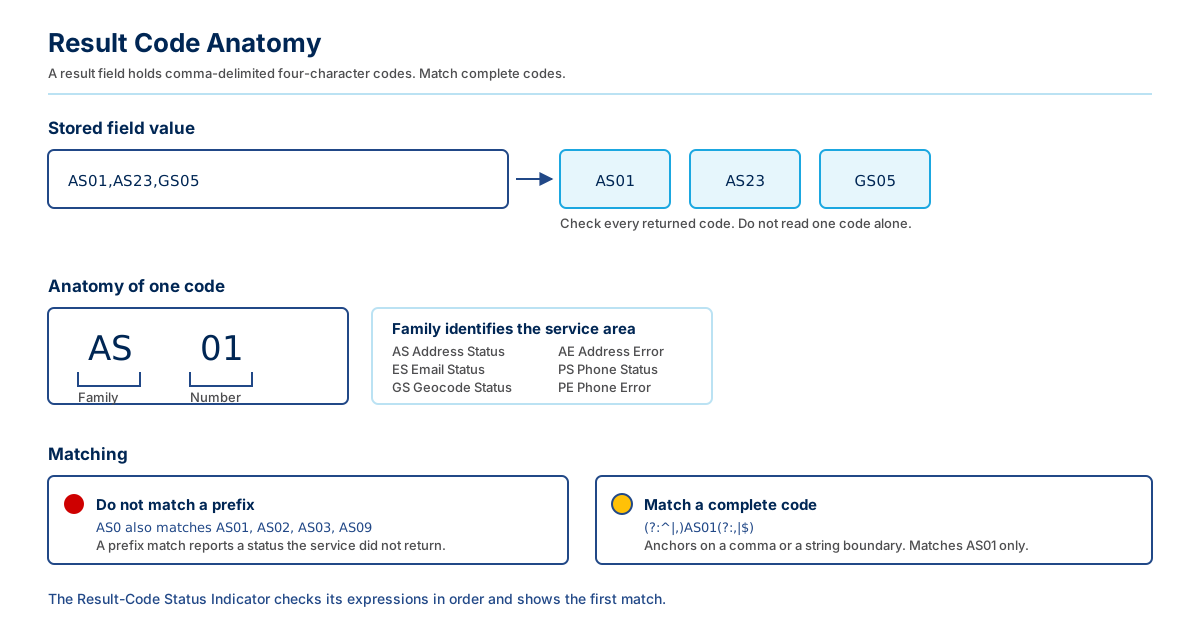
Each code has a family and a number. Match a complete code, not a prefix.
A response can contain multiple comma-delimited, four-character codes. Check each code that the service returns. Do not infer a result from a code family alone.
Use Result Codes in Salesforce#
Create output fields for the result code and the service outputs you need.
Add those fields to the service Custom Mapping.
Run a single-record action or a batch job.
Review the output fields and Clean Suite Log entries.
Use Salesforce Flow, reports, or list views to group records by code.
Code Families#
The first two characters identify a service or result category.
Prefix |
Category |
|---|---|
|
Address change |
|
Address error |
|
Address status |
|
Address verification |
|
Presence of children |
|
SmartMover match status |
|
SmartMover change-of-address status |
|
Append results |
|
Date of death |
|
Domain error |
|
Domain verify |
|
Email error |
|
Email status |
|
Business or firm error |
|
Business or firm status |
|
Demographic gender |
|
General transmission error or geocode error |
|
Geocode status |
|
General transmission warning |
|
Household income |
|
Length of residence |
|
Marital status |
|
Name error |
|
Name status |
|
Phone error |
|
Phone status |
|
Own or rent |
|
Transmission service error |
|
Address suggestions |
|
Personator status |
|
Verify results |
|
Verify status |
|
Occupation |
|
Global Express Entry status |
|
Property change |
|
Property error |
|
Property status |
Result Code Routing#
Use the complete result code string to select the record action.
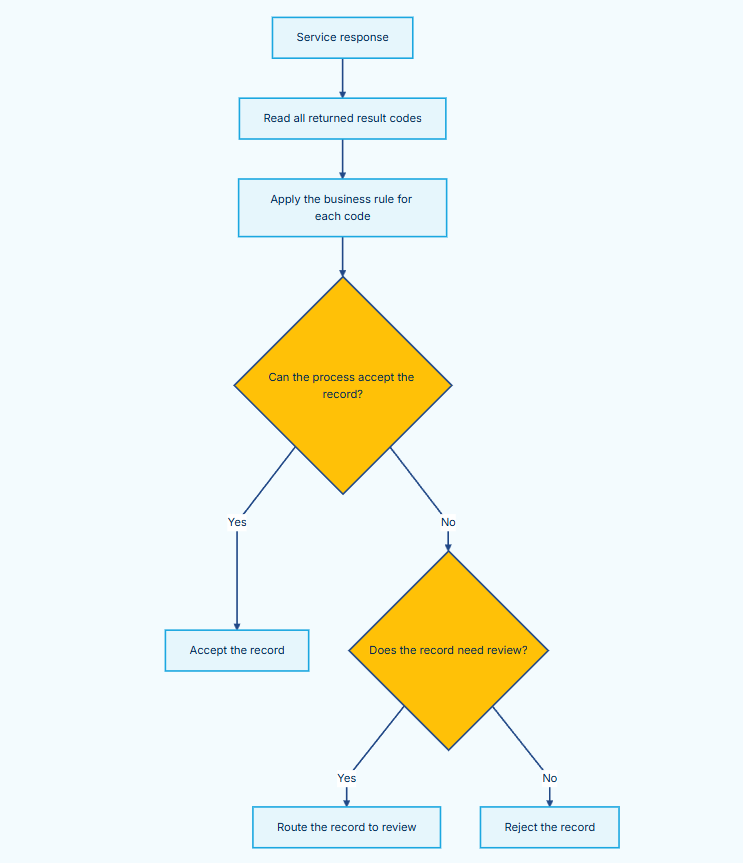
Diagram flow
Service response → Read all returned result codes
Read all returned result codes → Apply the business rule for each code
Apply the business rule for each code → Can the process accept the record?
Can the process accept the record? → Accept the record (Yes)
Can the process accept the record? → Does the record need review? (No)
Does the record need review? → Route the record to review (Yes)
Does the record need review? → Reject the record (No)
Process Records Safely#
A code is service output, not an automatic permission to overwrite data. Configure record updates and approval steps to match your business rules.
Review partial matches, multiple matches, unknown statuses, and errors before you replace user-entered contact data. Keep source values when your process requires audit history.
Troubleshoot Missing Results#
If result fields remain empty, check the Custom Mapping, field-level security, active license key, and Clean Suite Log. Confirm that the target user can read and edit the mapped output fields.
Result-Code Status Indicator#
Use the Result Code Status Indicator to show a configured result-code state on a Lightning page.
Service Coverage by Result Code Family#
Each Clean Suite service documents its result codes on its reference page. Use this table to navigate to the correct page for the code you need to understand.
Code Family |
Service |
|---|---|
AC |
|
AE |
|
AS |
|
AV |
|
CD |
|
CM |
|
CS |
|
DA |
|
DD |
|
DE |
|
DV |
|
EE |
|
ES |
|
FE |
|
FS |
|
GD |
|
GE |
Global Address Validation, Global Email, Global Express Entry, Global Phone, Personator Consumer, Property, US Business Coder |
GS |
|
GW |
Global Address Validation, Global Express Entry, Personator Consumer, Property, US Business Coder |
ID |
|
LD |
|
MD |
|
NE |
|
NS |
|
PE |
|
PS |
|
RD |
|
SE |
|
SG |
|
SP |
|
VR |
|
VS |
|
WD |
|
XS |
|
YC |
|
YE |
|
YS |