

2026-10-19: Upgrade Clean Suite to the 2GP Package#
Upgrade Clean Suite to the 2GP Package#
A quick, step-by-step guide for Salesforce administrators. Allow about 15–30 minutes per org.
Your current version → 1GP version 4.0 → 2GP version 4.0
Both 4.0 packages are the same Clean Suite release (3.2.4.0); only the Salesforce package format changes. Your data and settings carry over.
Before you start
Sandbox first. Do every step in a sandbox, check it, then repeat in production.
One-way. Once an org is on 2GP, it can’t go back to 1GP.
Quiet time. Wait for any running Clean Suite batch or SmartMover jobs to finish (Setup > Apex Jobs).
Admin account. You need permission to install packages.
Step by step#
Check your current version
Go to Setup > Installed Packages and find Clean Suite.
You see
What to do
Version Number lower than 4.0 (for example 3.24)
Start at step 2.
Version Number 4.0, Package Type not 2GP
Skip to step 4.
Version Number 4.0, Package Type 2GP
You’re already done.
Upgrade to 1GP version 4.0
Log in to the org, then open the link for that org type:
Sandbox#https://test.salesforce.com/packaging/installPackage.apexp?p0=04taj000000iu6XAAQ
Production / Developer Edition#https://login.salesforce.com/packaging/installPackage.apexp?p0=04taj000000iu6XAAQ
Choose Install for Admins Only.
Click Upgrade.
If you’re asked to grant access to third-party websites, tick the box and click Continue. Clean Suite uses these to reach Melissa’s services.
Wait for the upgrade to finish
When it’s done, you’ll see Upgrade Complete! and Salesforce sends you a confirmation email. A large org may show “This app is taking a long time to install” first. That’s normal; wait for the email.
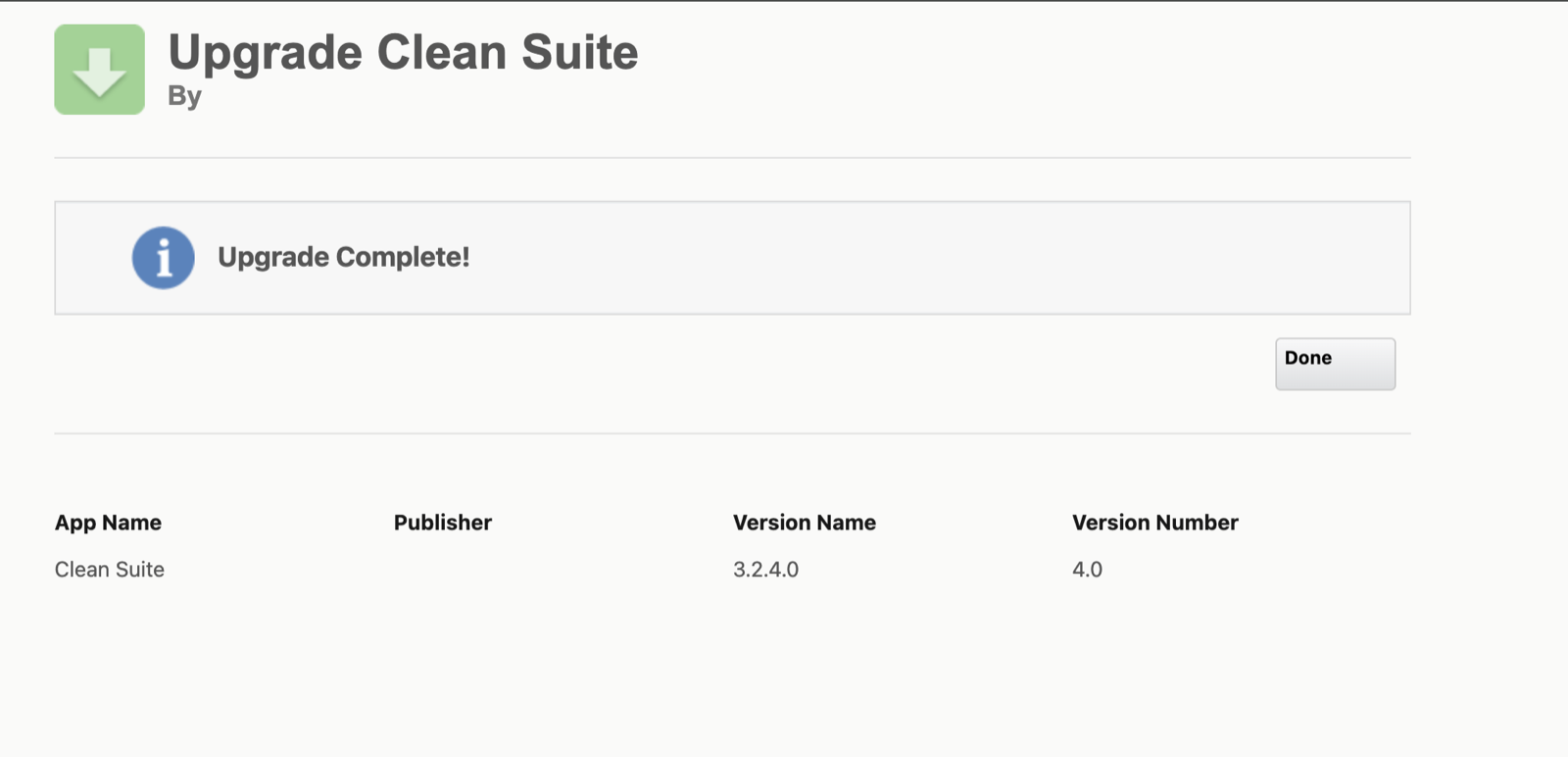
A finished install. Version Name 3.2.4.0 and Version Number 4.0 confirm the 4.0 release is installed. Click Done.
Check Setup > Installed Packages shows Clean Suite Version Number 4.0 before continuing.
Install the 2GP package
In the same org, open the link for that org type:
Sandbox#https://test.salesforce.com/packaging/installPackage.apexp?p0=04tUu000000kqV3IAI
Production / Developer Edition#https://login.salesforce.com/packaging/installPackage.apexp?p0=04tUu000000kqV3IAI
Choose Install for Admins Only.
Click Upgrade (the page may be titled “Migrate Clean Suite”, with a Migrate button), and approve third-party website access if asked.
Wait for the completion screen (the same as step 3) and the confirmation email.
Salesforce moves Clean Suite to the 2GP package in place: nothing is removed and your data stays where it is.
Confirm the move
Go to Setup > Installed Packages and check the Clean Suite row:
Column
Should show
Version Number
4.0
Package Type
2GP
Namespace Prefix
MDPERSONATOR
Install Date
your original install date (unchanged)
Assign the permission sets
Do this even if users already had access. Some Clean Suite settings get their field access only from these permission sets, administrators included.
Go to Setup > Permission Sets.
Open Melissa Global Intelligence Permission Set for administrators and anyone who changes Clean Suite settings, or Melissa Global Intelligence Permission Set NonAdmin for everyone else who uses Clean Suite.
Click Manage Assignments > Add Assignment, select the users, and save.
Check that everything works
Open the Clean Suite app and the admin settings page. Your settings should be unchanged.
Verify one Contact or Account the way you normally do.
If you use batch processing, run a small batch and check it completes.
When the sandbox checks out, repeat steps 1–7 in production with the production links.
If something goes wrong#
What you see |
What to do |
|---|---|
“We couldn’t migrate this package” with a Package version conflict |
The org isn’t on 1GP 4.0 yet. Finish steps 2–3 (wait for the email), then retry step 4. See the migration error FAQ. |
The link opens the wrong org or the wrong login page |
Replace |
|
The user is missing a Melissa permission set. Do step 6 for that user, including administrators. |
Global Address or Business Coder settings return to their defaults after saving |
Same cause: assign Melissa Global Intelligence Permission Set (step 6). |
|
Check Setup > Security > Remote Site Settings for the Melissa entries (for example |
Need help?
Contact Melissa support or your account representative with your org ID (Setup > Company Information), whether it’s a sandbox or production, the Clean Suite Version Number and Package Type, and a screenshot of any error.